AvoidErrors

    A Computer Tutorial Site

    • Home
    • Operating Systems
      • Windows XP
      • Windows 7
      • Windows 8
      • Server 2008
      • Linux / Ubuntu
    • Microsoft Office
      • Outlook
    • Routers
    • Tech Tips
    B0028N6VLE

    How to set-up a Linksys Router with a Static IP Account

    • Tweet
    • Tweet

    Some ISP will require you to enter certain number on your computer’s TCP/IP settings. This is the same number you need to enter on your router’s web-based setup page to configure a Static IP account.

    To setup a Linksys router with a Static IP you need to go through five (5) stages:

    1. Verifying Internet Connection bfore you start
    2. Connecting the Devices properly Together
    3. Checking the LEDs on the modem and Router
    4. Configuring a Linksys Router For a Static IP Account with the info. provided to you by your (ISP) Internet Service Provider
    5. Do a Power Cycle after the Router is properly Configured

    Verifying Internet Connection

    Connect the Broadband modem to the computer using an Ethernet cable without the router installed and make sure that the Internet connection is active. If not, contact your Internet Service Provider.
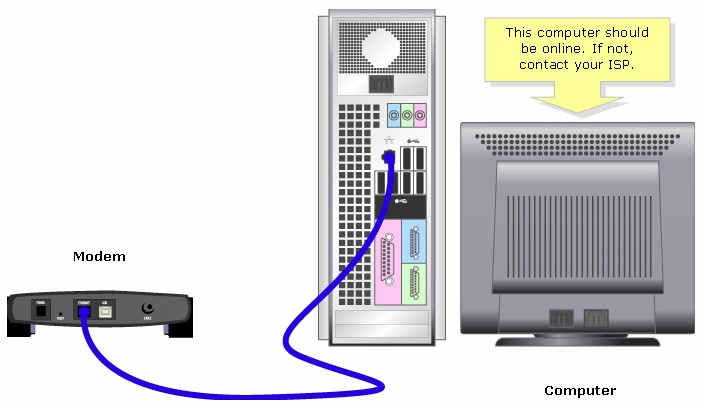
    NOTE: The image may vary depending on the computer and modem you’re using.

    Connecting the Devices Together

    After ensuring that you have an active Internet connection, Make sure you contact you Internet service Povider to Bridge the Modem

    Note: Make sure that you have all necessary Information from your Internet Service Provider before bridging the modem like the  IP Adress,Gateway,and DNS. 

    Connect the modem to the router’s Internet port and the computer to any of the four Ethernet ports.

    Checking the LEDs

    The Linksys router’s front panel will indicate the status of the connection. After connecting the broadband modem to the WAN or Internet port, the computer to an available numbered port and powering on the router. For instructions, click here.

    Setting-Up a Static IP Address On a Linksys Router

    Step 1:
    Access the router’s web-based setup page.

    Step 2:
    When the router’s web-based setup page appears, look for Internet Connection Type and select Static IP on the drop-down arrow and enter the IP Address, Subnet Mask, Gateway and DNS assigned by the Internet Service Provider.

    Step 3:

    Click Apply and perform a power cycle. For instructions, please follow the steps below.

    Power Cycle

    Step 1:
    Shut down the computer.

    Step 2:
    Unplug the router’s power cable.

    Step 3:
    Unplug the Broadband modem’s power cable. Then wait for 30 seconds.

    Step 4:
    Plug in the Broadband modem’s power cable and wait for its lights to appear stable.

    Step 5:
    Plug in the router’s power cable once the modem’s lights appear stable.

    Step 6:
    Power on the computer and test the Internet connection.

    Comments

    Leave A Comment →
    1. Azeem Lal
      May 22, 2011 Reply

      sir, i am a danish. i have a linksys wireless modelNo WAG354G. the internet service co.give me a conection in the house wall. it has a 4 holes one for TV another is free no 3 write(TELE) 4TH hole(DATA) .i cannot understand what can i do. plz help me.thanyou

    Click here to cancel reply.

    Add Your Comment

    Your email will not be published.

    • Get The Latest Tutorial Via Email Straight to your Inbox!

      Delivered by FeedBurner

    • Follow Us on FacebookFollow Us on Google+Follow Us on TwitterFollow Us on YouTube
      • Recent
      • Popular
      • Comments
      • Navigate-windows-8 -1

        How Difficult and Confusing is Windows 8?

        May 19, 2012 No comments
      • Fix Double Click Always Opens Search in Windows Explorer

        How to Fix Double Click Always Opens Search in Windows Explorer

        May 7, 2012 No comments
      • How To Enable Windows 7 Aero Effects Inside VirtualBox1

        How To Enable Windows 7 Aero Effects Inside VirtualBox

        May 6, 2012 No comments
      • Set Auto Reply Message in Outlook 2010

        Set Auto Reply Message in Outlook 2010

        May 6, 2012 No comments
      • B Logo2

        How to Mount ISO Images In Windows 7

        May 6, 2012 No comments
      • bootmgr

        How to Format and Reinstall Windows 7

        February 10, 2011 884 Comments
      • this-copy-of-windows-is-not-genuine

        How to remove Windows Genuine Advantage Notification

        July 6, 2011 180 Comments
      • hard_drive

        How to Format your Hard Drive using windows xp and Vista

        August 24, 2010 143 Comments
      • xara-studio

        Create Flash Photo Gallery in Xara Designer Pro 6

        October 6, 2010 140 Comments
      • hard_drive

        Hard Drive not showing up

        October 24, 2010 130 Comments
      • Miguel: is really portable, remember everything you copy there will be stored...

      • Valentin: Hii want to ask you tell me about propertys of "portable" windows ...

      • Brian Nyagol: I am helped by this. Thanks a lot. I am certain now that nobody can kn...

      • Stephen Rice: Thank you Miguel i have learned a lot from your tutorial, and can now...

      • dm9: Why not making other languages? It would be cool!...

    • Miguel Guzman

      PhotobucketGoogle+
    • Our Sponsors

    • - Facebook Members WordPress Plugin
    • Connect with us:
    • Twitter
    • Facebook
    • YouTube
    • RSS
    • © 2012 AvoidErrors
    • Powered by WordPress